Install the FluentStream Video add-on to your Google Workspace to be able to schedule and join FluentStream Video meetings directly from your Google calendar.
- Install the FluentStream Video add-on
- Login to the FluentStream Video add-on
- Schedule a FluentStream Video in Google calendar
Install the FluentStream Video add-on
- In your Google calendar (https://calendar.google.com), open the right panel and select the plus sign.If the panel is hidden, select the chevron at the bottom of the screen to show it.

- Enter 'FluentStream Video' in the search field and select the FluentStream Video add-on.
- Select Install and then select Continue on the permission screen.
- Select a Google account on the next screen. The FluentStream Video add-on will then appear in the sidebar of your Google calendar.
Login to the FluentStream Video add-on
- In your Google Calendar, select the FluentStream Video add-on.
- Select 'LOGIN', enter your account details and then authorize access.
Schedule a FluentStream Video in Google calendar
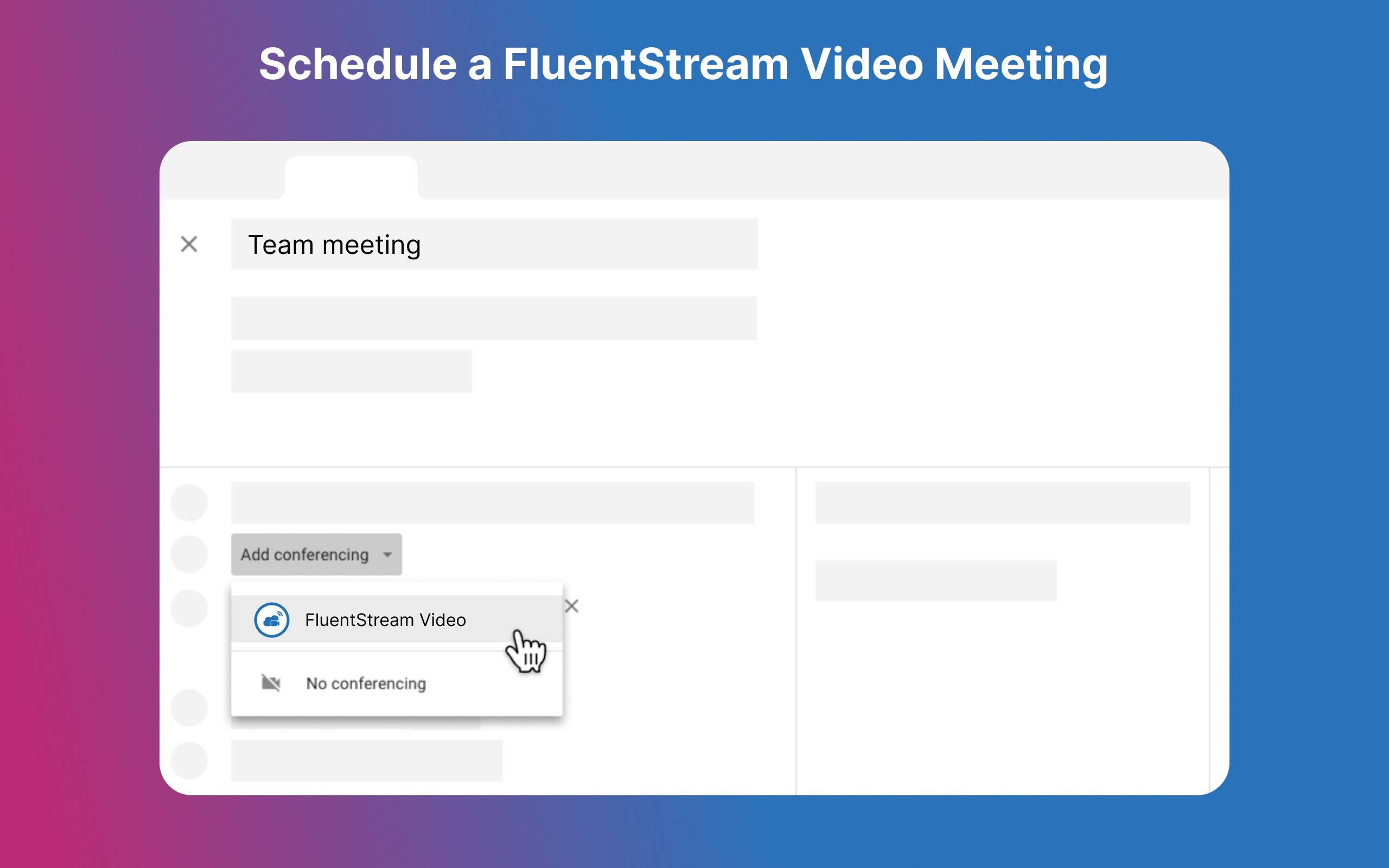
- In the calendar create a new event and in the Video conferencing field select FluentStream Video.
- Your meeting details are then included in the email confirmations that are sent out.
If Google Meet is your default:- You will see 'Add Google Meet...'
- Select the arrow to the left of this button
- Choose 'FluentStream Video' from the list of add-ons
If Google Meet is not your default:
- You will see 'Add video conferencing'
- Click this button
- Select 'FluentStream Video' from the list of add-ons
Was this article helpful?
That’s Great!
Thank you for your feedback
Sorry! We couldn't be helpful
Thank you for your feedback
Feedback sent
We appreciate your effort and will try to fix the article